You're going to build a real CRM just by talking to Claude in plain English. No code, no terminal. I'll give you the exact words to say, in order. Even if you've never built anything in your life.
Download the PDF (9 pages)
Most people pay $100 to $500 a month for a CRM like HubSpot, GoHighLevel, or Salesforce, and after years of paying, they own nothing. The truth is, the core of a CRM is simple: a place to store people, track deals, and see what's happening. With AI doing the heavy lifting, you can build one yourself in an afternoon and own it forever.
I'm not a classically trained developer. I built this whole thing by talking to AI in plain English, and this guide hands you the exact words to say. Whether you want to run your own business on it or build CRMs for other people, this is your starting point.
Just two free things, and you barely have to do anything. No coding tools to install, no setup, no expertise needed.
That's it. You don't install Node, you don't install developer tools, you don't type a single command. If your computer needs anything to run the app, Claude downloads and sets it up for you during the build. Honestly, you need almost no expertise — you just talk to it.
Open the Claude desktop app and go to the Code side. Make a new empty folder for your project (call it crm) and point Claude at it. Then paste the words below and press enter. Claude builds the project, installs everything it needs, and starts it running. A couple of minutes later it tells you it's ready and a blank app opens in your browser.
"Build me a simple CRM web app that I can run on my own computer. Use React. I am not a coder, so handle all of the technical setup for me, install anything you need, and start the app running so I can see it. When it's ready, tell me how to open it in my browser."
Now you've got a live app running on your computer. It's blank — that's your canvas. Everything after this is just telling Claude what to add.
Your CRM needs somewhere to store people and deals. That's what Supabase is for. Tell Claude to connect it. Claude will ask you for two things from your Supabase account — your Project URL and your anon key. You find both inside Supabase under Project Settings → API. Copy them and paste them to Claude when it asks.
"Connect my CRM to my Supabase database so it saves real data. Tell me exactly where to click inside Supabase to find my Project URL and my anon key, then wire them in for me. Keep those keys private and safe, and don't expose them anywhere public."
Give your CRM a front door so only you can get in. One sentence to Claude and it's handled.
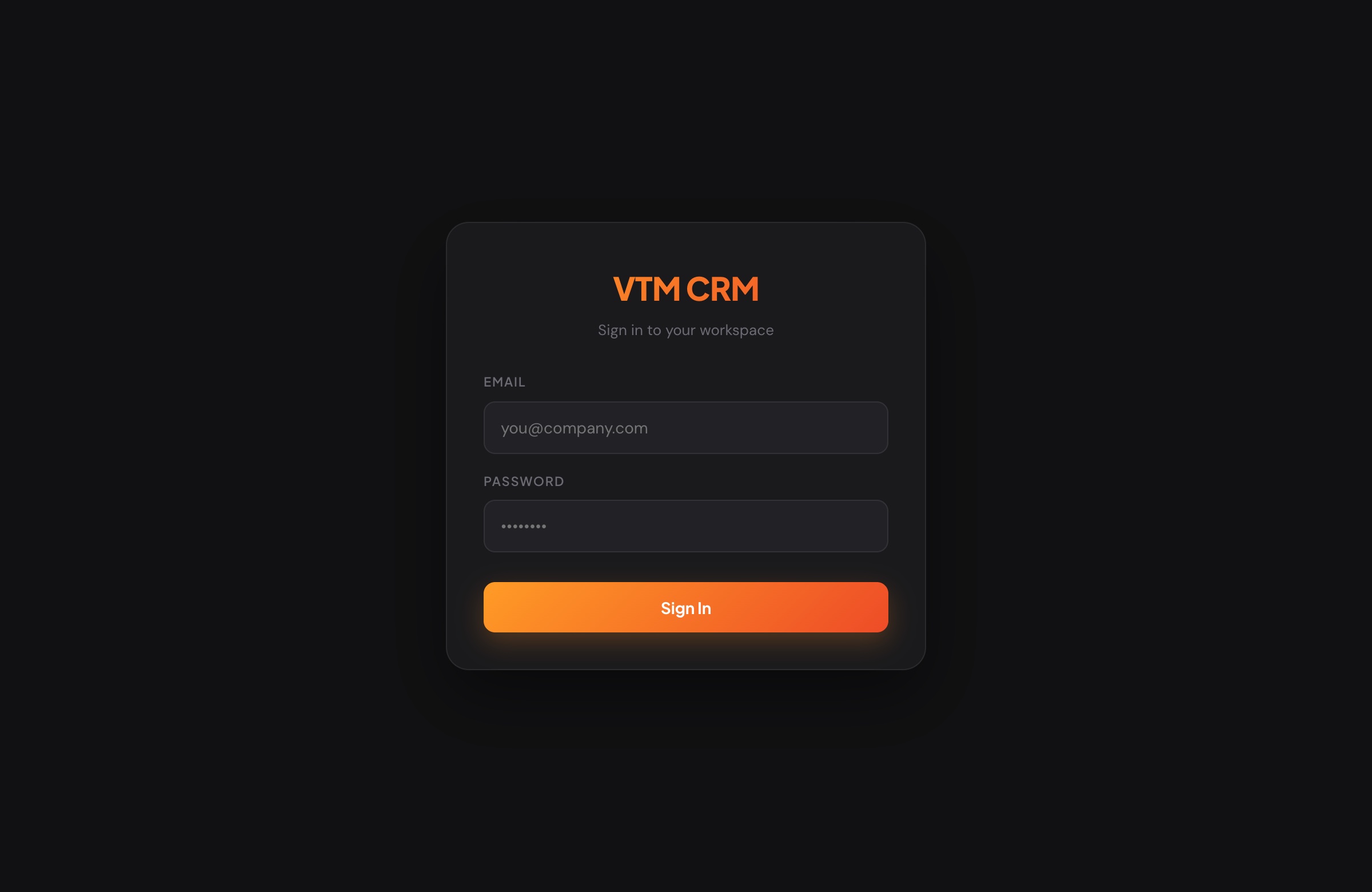
"Add a login screen to my CRM using Supabase, with email and password. After I log in, keep me logged in even if I refresh the page. Make the login page look clean and modern on a dark background with a big bold title."
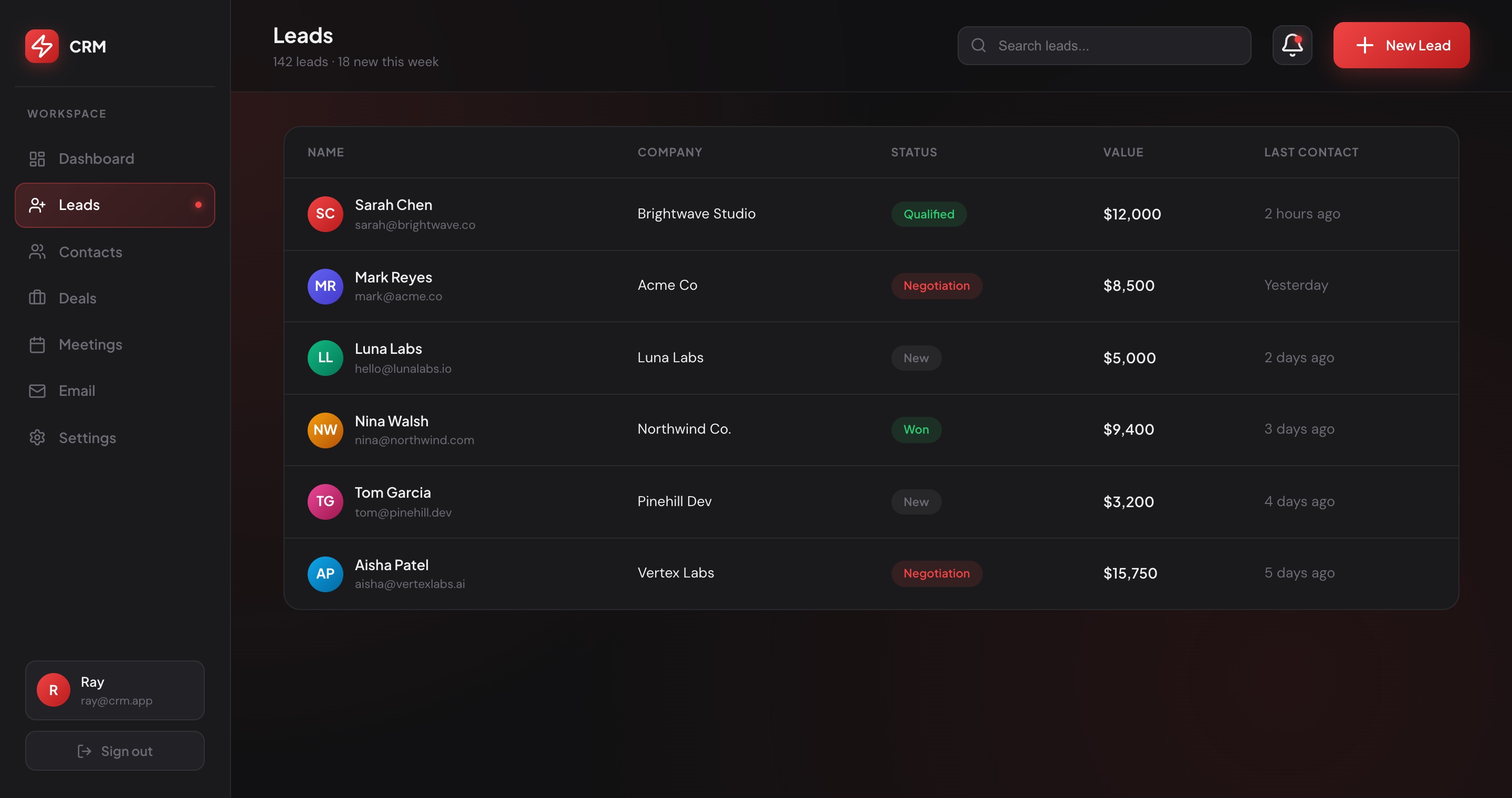
This is the heart of any CRM: the list of people you're working. Tell Claude to build the page where you add them and see them.
"Add a Leads page to my CRM. I want to add people and see them in a clean table showing each person's name, email, company, a status (new, qualified, negotiation, or won), and their deal value. Add a button that opens a simple form to add a new lead, and save everything to my Supabase database so it's still there when I come back."
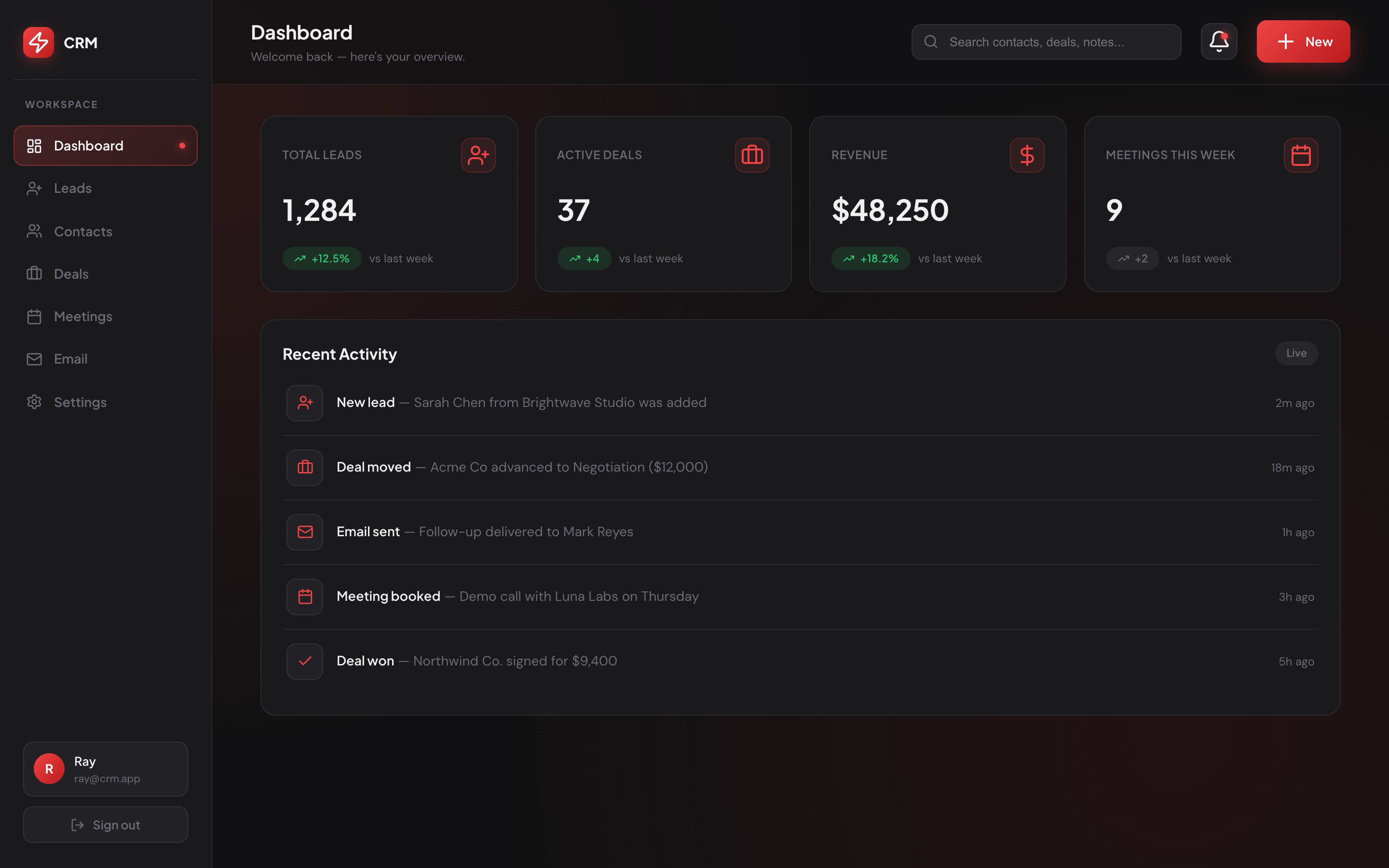
Here's the secret to a professional look with zero design skill: show Claude a picture. Save the dashboard image below (right-click it, or long-press on a phone), then drag that image straight into Claude and tell it to copy the look. Claude can see the image, so it matches the real thing — fonts, colors, gradients, spacing — instead of guessing.
"Here's a screenshot of exactly how I want my CRM to look. Make mine match it as closely as you possibly can — copy the fonts, the colors, the red gradients, the spacing, and the dark theme exactly. Build the same dark sidebar with my logo at the top and links for Dashboard, Leads, Contacts, Deals, and Settings, and the same home Dashboard with the stat cards across the top (Total Leads, Active Deals, Revenue, Meetings This Week) and a Recent Activity list underneath. I want it to look identical to this picture."
Want the Leads page to match too? Drag in the leads screenshot from earlier in this guide and say "make my Leads page look exactly like this." Same trick, every screen.
GitHub is a free, safe home for your project online — it's your backup, and it's what makes putting your CRM on the web (next step) one click. The good news: Claude does all the GitHub work for you, right inside the app. You don't learn any commands.
First, make a free account at github.com. Then tell Claude:
"Save my whole project to GitHub for me. Create a new private repository called crm, set everything up, and push all my files up to it. If you need me to log in or approve anything, tell me exactly what to click."
Claude sets up Git, saves a snapshot of your work, and pushes it to GitHub for you. When you sign into GitHub, all your files are there.
Now make your CRM live on the internet, for free, so you can use it from your phone or anywhere else. Vercel reads your GitHub project and gives it a real web address.
"Now put my CRM online for free using Vercel, connected to the GitHub repository you just made. Walk me through it one step at a time in plain English, and make sure my Supabase keys are added as private settings, never exposed in the public code."
Follow Claude's steps and a minute later you'll have a live web address for your very own CRM. From now on, every time you push changes to GitHub, this live site updates itself. That's it — you're done.
A real CRM with a login, a dashboard, and a live leads table — and you built it by talking, not coding. From here you grow it the exact same way: just tell Claude what you want next. "Add a Contacts page." "Add a deals pipeline I can drag cards across." "Email me when a new lead comes in." Same move every time. You describe it, Claude builds it.
Skip the build. Get the full project for the exact CRM in this guide, open it in Claude, and just tell it what to change.
Get the CRM Build →